
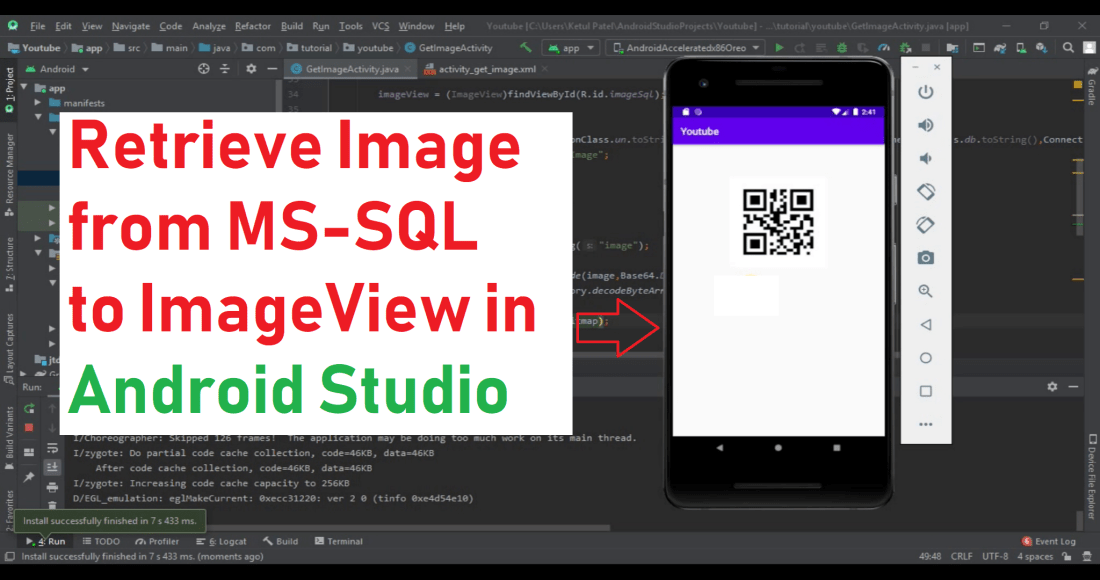
Following are the steps that will show you how to retrieve image from MS-SQL database in Android Studio.
(1) Step – 1 : Add following code in your layout resource file activity_get_image.xml.
<?xml version="1.0" encoding="utf-8"?>
<LinearLayout xmlns:android="http://schemas.android.com/apk/res/android"
    xmlns:app="http://schemas.android.com/apk/res-auto"
    xmlns:tools="http://schemas.android.com/tools"
    android:layout_width="match_parent"
    android:layout_height="match_parent"
    android:orientation="vertical"
    tools:context=".GetImageActivity">

    <ImageView
        android:layout_width="wrap_content"
        android:layout_height="wrap_content"
        android:id="@+id/imageSql"
        android:layout_gravity="center"
        android:layout_marginTop="@dimen/_50sdp"
        />

</LinearLayout>
(2) Step – 2 : Now add the following code to your java file GetImageActivity.java
public class GetImageActivity extends AppCompatActivity {

    ImageView imageView;
    Connection con;
    Statement stmt;
    ResultSet rs;

    @Override
    protected void onCreate(Bundle savedInstanceState) {
        super.onCreate(savedInstanceState);
        setContentView(R.layout.activity_get_image);

        imageView = (ImageView)findViewById(R.id.imageSql);

        try{
            con = connectionClass(ConnectionClass.un.toString(),ConnectionClass.pass.toString(),ConnectionClass.db.toString(),ConnectionClass.ip.toString());
            String query = "SELECT * FROM Image";

            stmt = con.createStatement();
            rs = stmt.executeQuery(query);

            if(rs.next()){
                String image = rs.getString("image");

                byte[] bytes = Base64.decode(image,Base64.DEFAULT);
                Bitmap bitmap = BitmapFactory.decodeByteArray(bytes, 0, bytes.length);

                imageView.setImageBitmap(bitmap);
            }
        }catch (Exception e){
            e.printStackTrace();
        }
    }


    @SuppressLint("NewApi")
    public Connection connectionClass(String user, String password, String database, String server){
        StrictMode.ThreadPolicy policy = new StrictMode.ThreadPolicy.Builder().permitAll().build();
        StrictMode.setThreadPolicy(policy);
        Connection connection = null;
        String connectionURL = null;
        try{
            Class.forName("net.sourceforge.jtds.jdbc.Driver");
            connectionURL = "jdbc:jtds:sqlserver://" + server+"/" + database + ";user=" + user + ";password=" + password + ";";
            connection = DriverManager.getConnection(connectionURL);
        }catch (Exception e){
            Log.e("SQL Connection Error : ", e.getMessage());
        }

        return connection;
    }
}
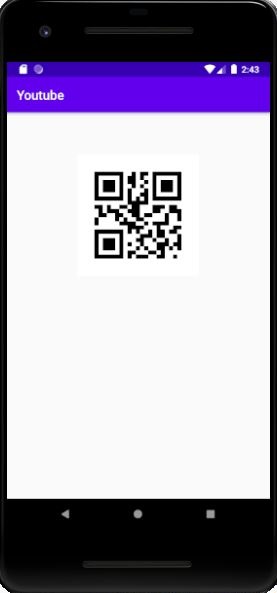
(3) Step – 3 : Following is the output of the program.
(4) Step – 4 : If you want to watch the tutorial just go to below link.
 Ketul Patel